Copyfold
Your clipboard, organized
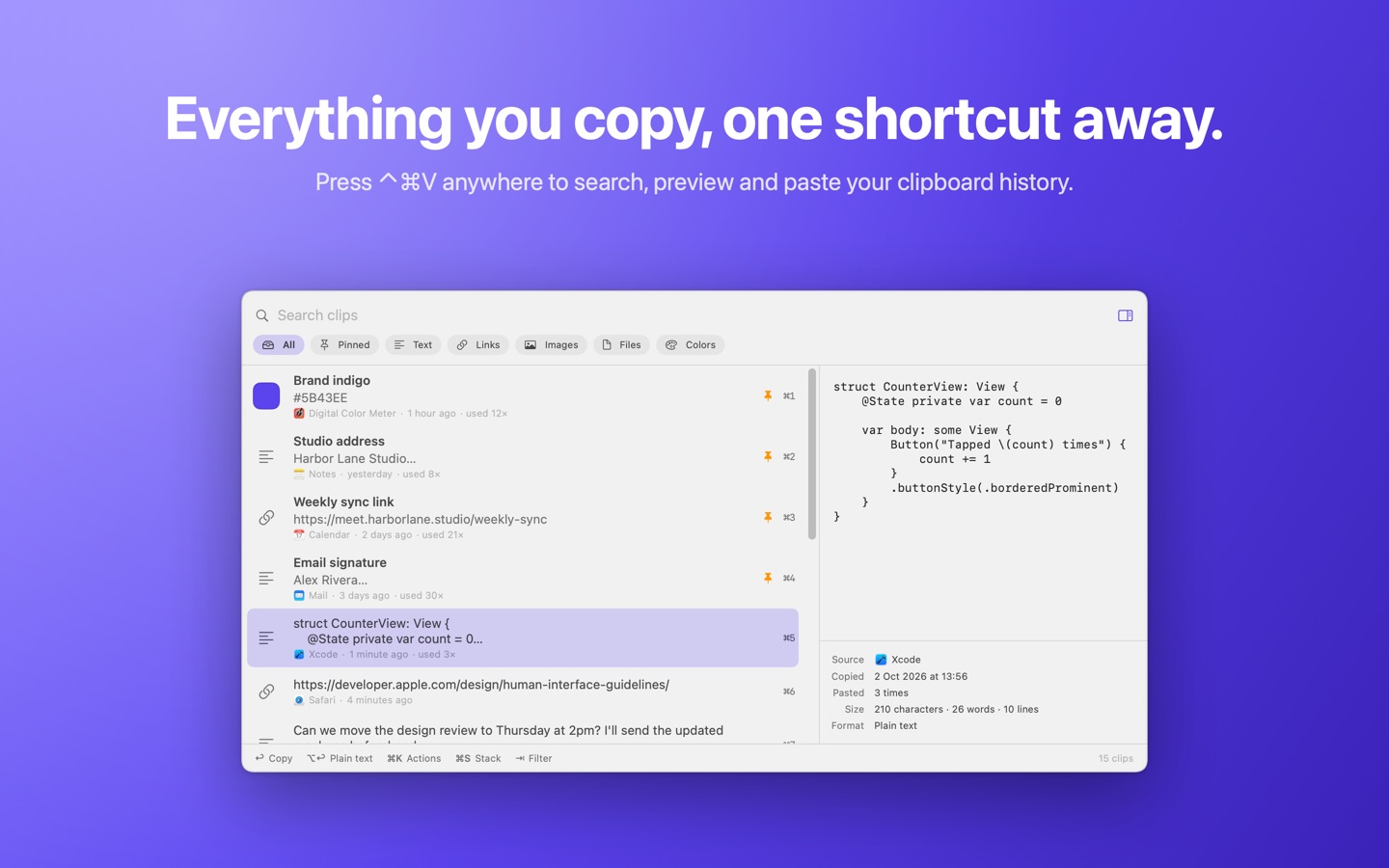
Everything you copy, one shortcut away. Search it, preview it and use it again, privately on your Mac.

One shortcut away
Press Control-Command-V anywhere and your clipboard history appears: text, links, colors, images and files, newest first. Use the arrow keys and Return, or Command-1 to Command-9 for the first nine clips. The shortcut can be changed in Settings.
Find anything, even inside images
Type a few words to search every clip, its name and the app it came from. Text in screenshots and scans is recognized on your Mac, so searching "invoice" finds the photo of one. Filter by text, links, images, files or colors.
Paste a stack, in order
Filling in a form or moving several values between documents? Queue clips with Command-S, start the stack, and every Command-V pastes the next one, in order.
Transform text in a keystroke
Command-K opens every action for a clip, including 16 text transforms: change case, camelCase or snake_case, trim and join lines, sort or remove duplicate lines, URL and Base64 encode or decode, and format or minify JSON.
Pin and name your snippets
Pin the address, link, color or reply you use every day and give it a name. Pinned clips stay at the top, are never deleted automatically, and are searchable by name.
Private by design
Clips that password managers mark as concealed are never saved, and neither is anything that looks like an API key, a private key or a card number. Tracking parameters are removed from copied links, and you can tell Copyfold to ignore specific apps.
Made for the keyboard
Paste as plain text with Option-Return, copy without pasting, edit a clip before using it, or drag it straight into another app. A preview pane shows the full text, the color, the image or the files, along with where each clip came from.
Fits the way you work
Lives in the menu bar, starts at login if you like, and keeps as much history as you want for as long as you want. Pause it while you copy something private, export and import your history, and use Copyfold actions in the Shortcuts app.
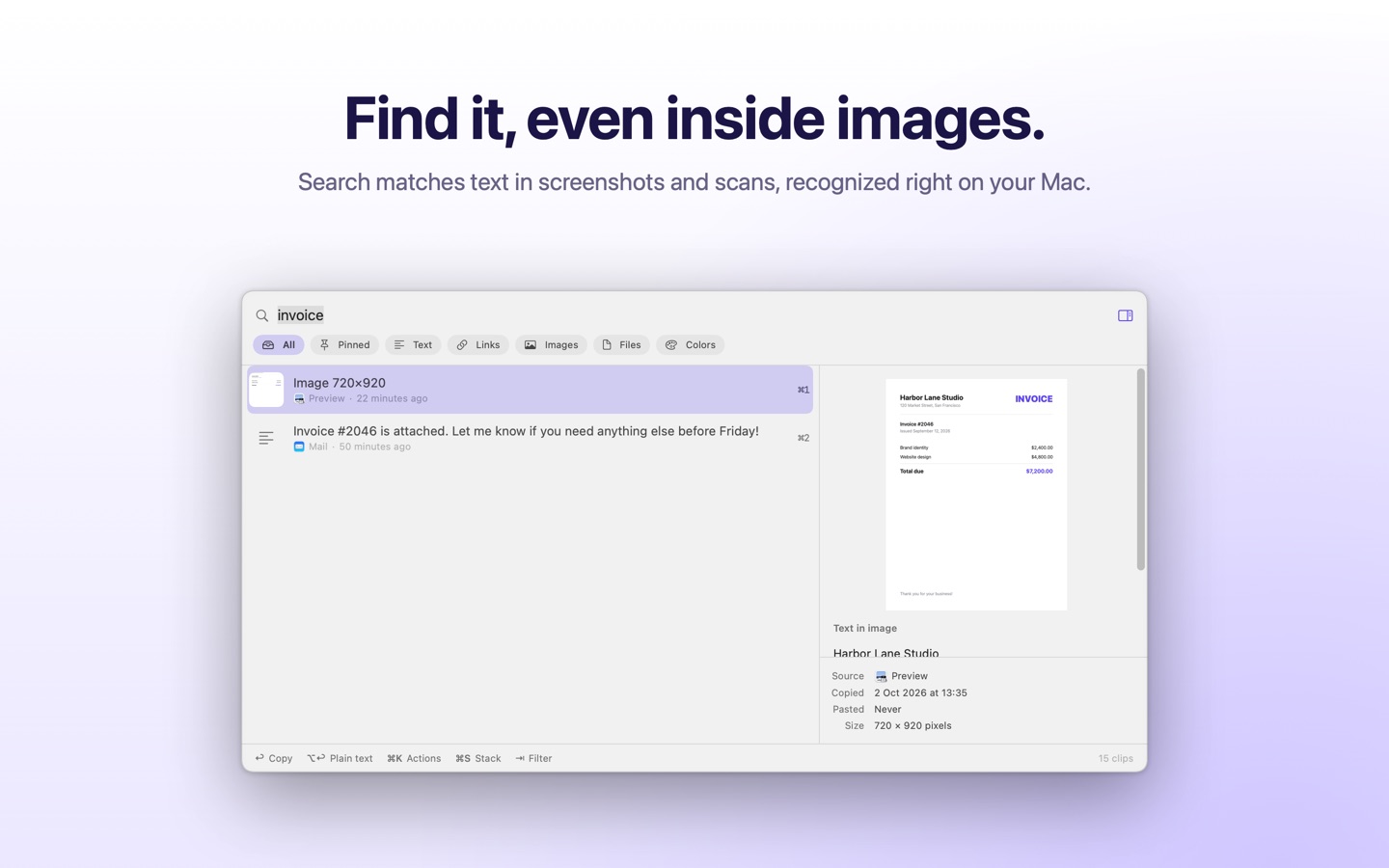
Search finds text inside images.
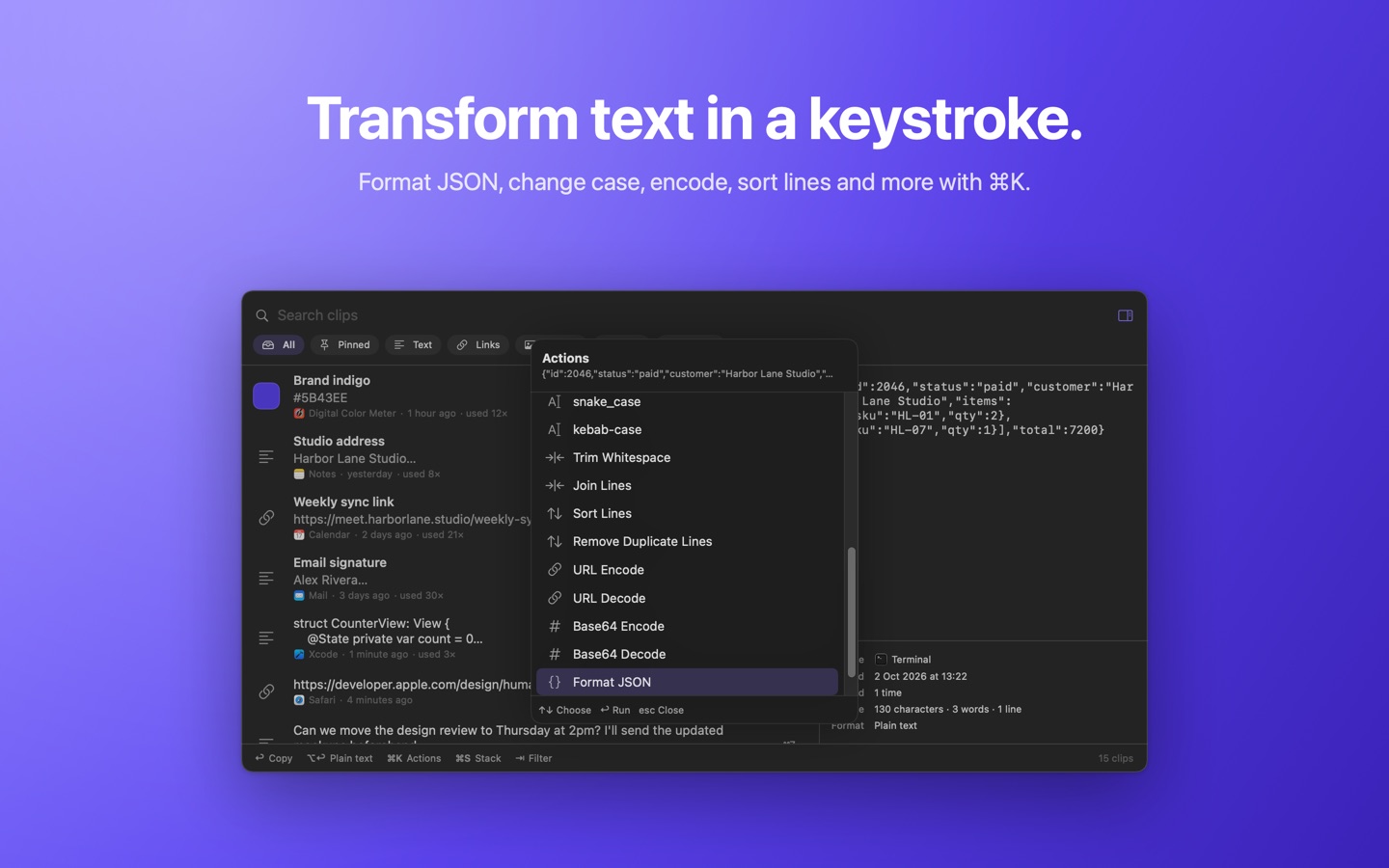
Every action and transform, one keystroke away.
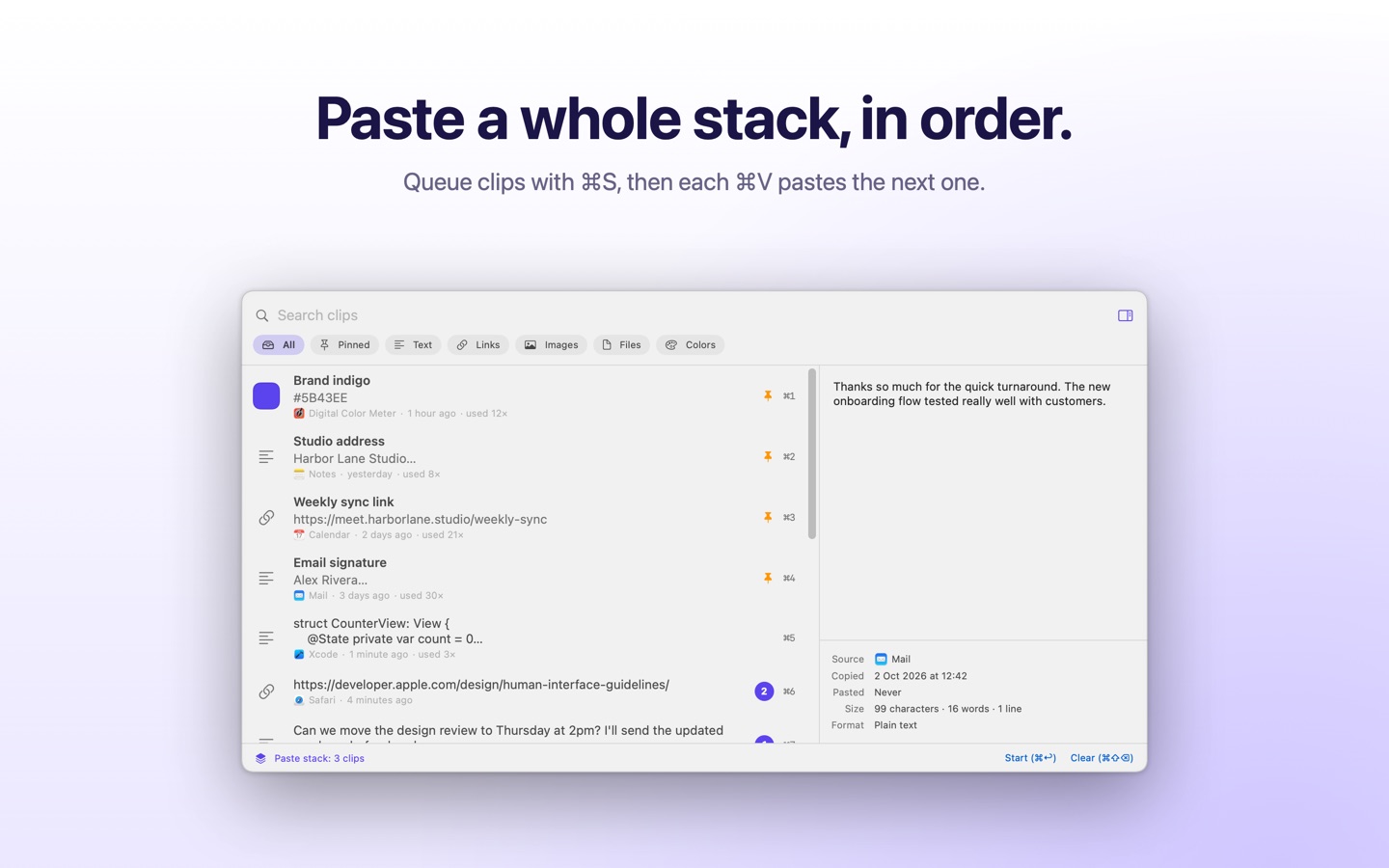
Queue clips and paste them in order.
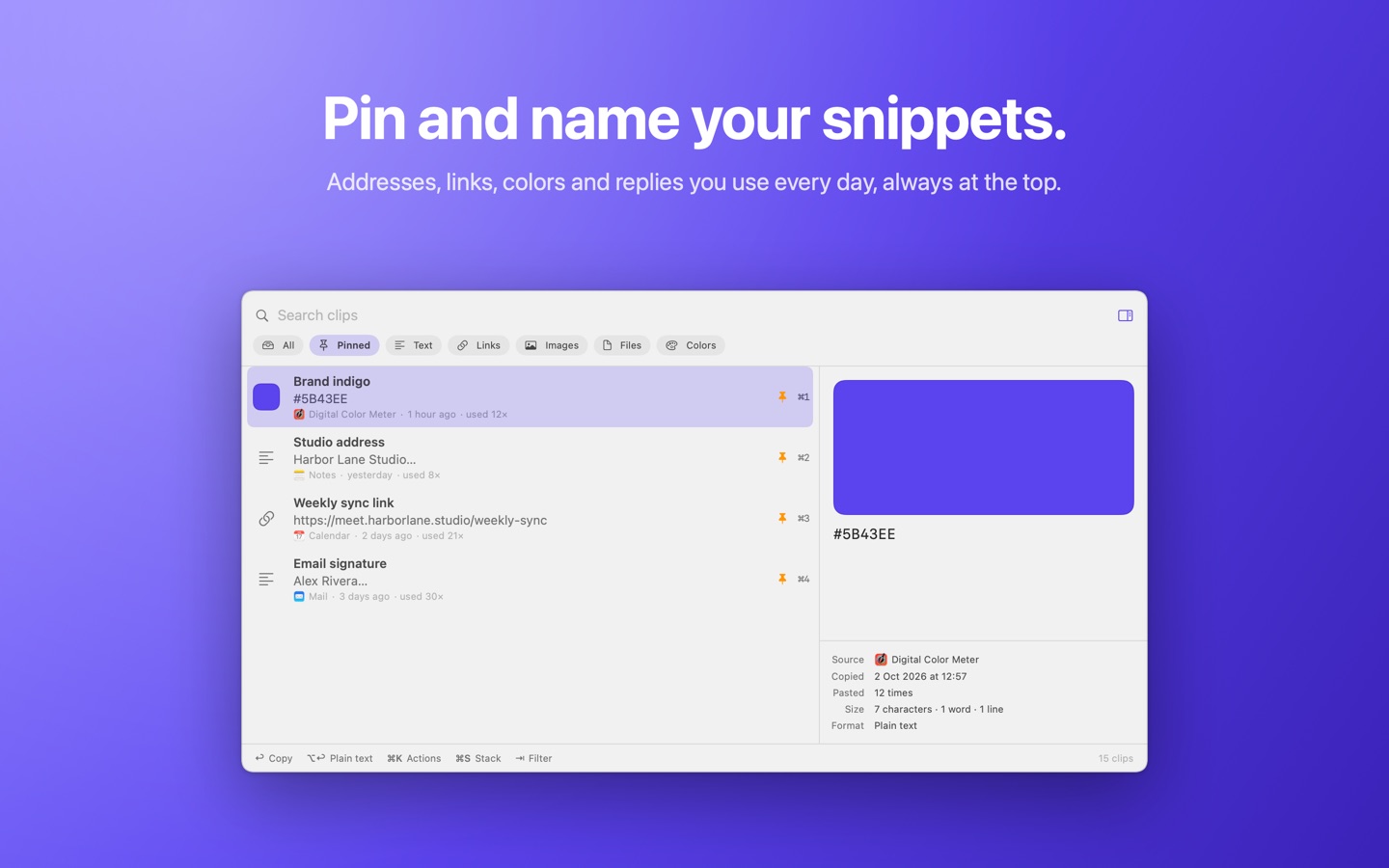
Pinned, named snippets.
Copyfold has no account, no network connection and no analytics of any kind. Your clipboard history is stored only on your Mac, inside the app's own sandbox, and we collect nothing.
Requires macOS 14 or later.
Support
Questions, problems or ideas? Write to contact@snowlinesoftware.com or use the contact form.
How do I open Copyfold?
Press Control-Command-V in any app, or click the clipboard icon in the menu bar. If you hid the menu bar icon in Settings, open Copyfold again from the Applications folder or Spotlight to bring up its Settings.
Choosing a clip only copies it. Can it paste for me?
Yes. Turn on "Paste into the active app after choosing a clip" in Settings, Pasting, and allow Copyfold under System Settings, Privacy & Security, Accessibility when macOS asks. Copyfold then sends Command-V to the app you were using. It never reads what you type.
Why does the paste stack ask for Input Monitoring?
To paste the next clip each time you press Command-V, Copyfold has to notice that you pressed it. The permission is used only while a paste stack is running, and only to recognize Command-V. Without it, every other feature works normally.
Where is my clipboard history stored?
Only on your Mac, inside Copyfold's sandbox container. You can clear it from the menu bar menu, set it to delete old clips automatically, or export it from Settings, Advanced.