
Image Shrink
Smaller photos, same great look
Drop in one photo or a whole folder and see exactly how big every image will be, and how much space you'll save, before anything is saved.

Three ways to shrink
Scale everything with one slider, fit images inside a maximum width and height, or ask for a file size like "under 500 KB". Presets cover email, Instagram, HD, Full HD and 4K, and small images are never enlarged.
Hit an exact file size
Upload form says 1 MB maximum? Image Shrink finds the largest dimensions that keep each photo under your limit, or fits a whole batch into one total. Sizes are measured by actually encoding each image, so what you see is what you get.
See the difference before you save
Compare the original and the shrunk version side by side. Drag the divider across and zoom in to check fine detail, then adjust the quality until it looks just right.
The right format
Keep each file's format, or convert everything to JPEG, HEIC, PNG or TIFF. HEIC is often half the size of JPEG at the same quality. Transparent images are handled correctly and photo orientation is always preserved.
Share privately
Keep camera and lens details while removing GPS location, or strip all metadata. Your photos are processed entirely on your Mac and never leave it.
Made for the Mac
Drag in images or entire folders, paste from the clipboard, or drop files onto the Dock icon. Works with JPEG, PNG, HEIC, TIFF, WebP, GIF and RAW. Your originals are never modified and existing files are never overwritten.
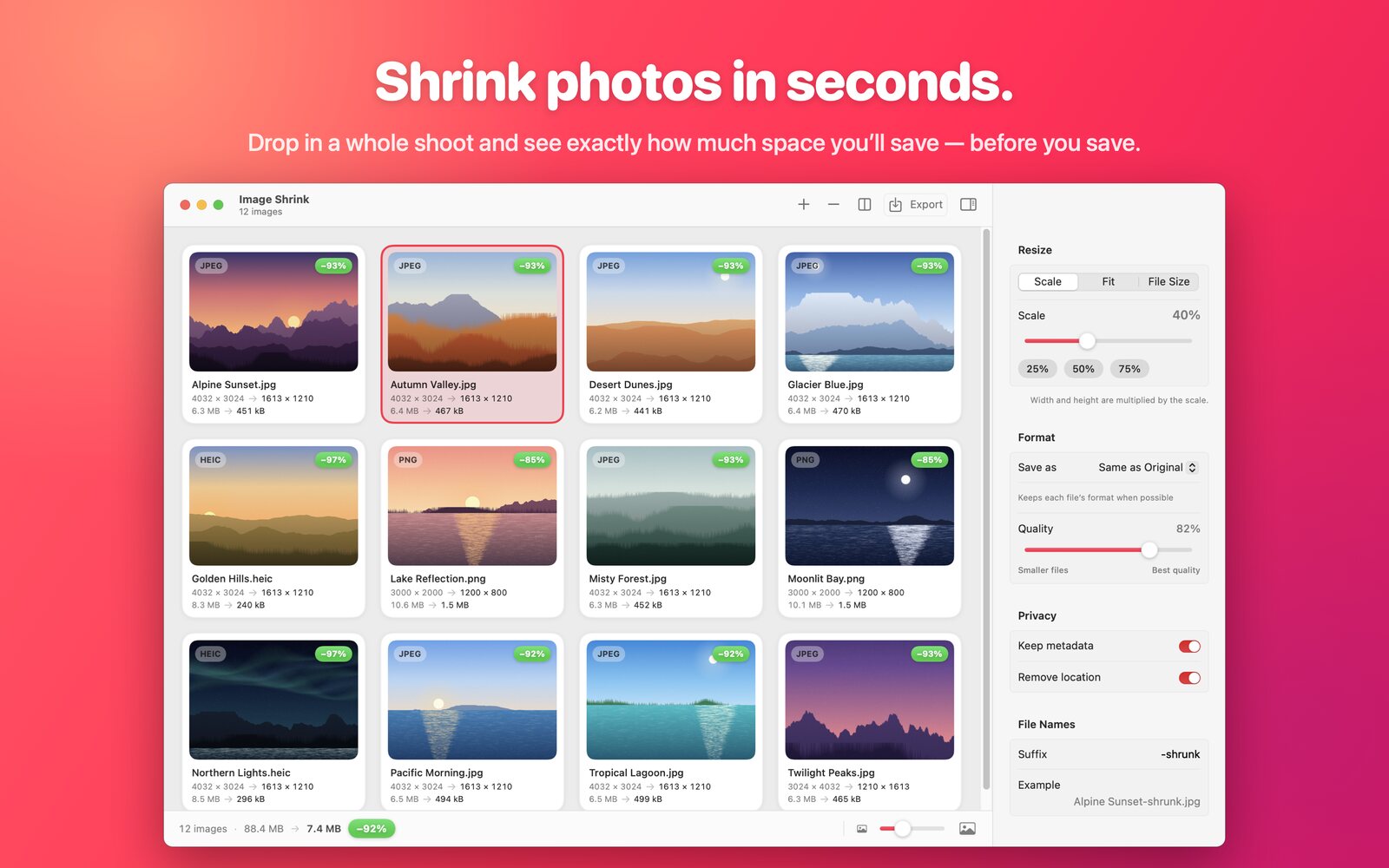
Live size estimates and savings for every photo.
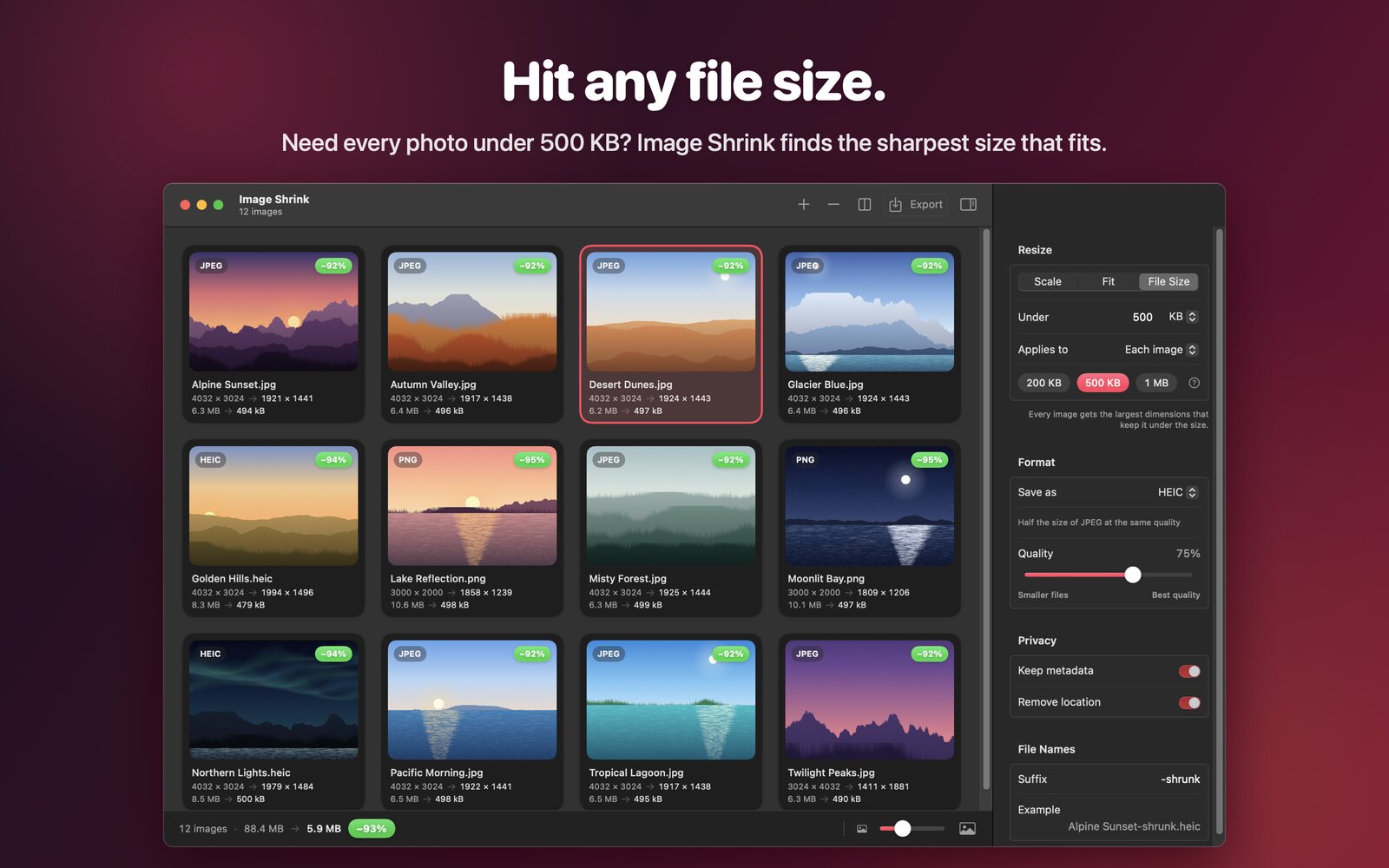
Every photo under 500 KB, at the best size that fits.
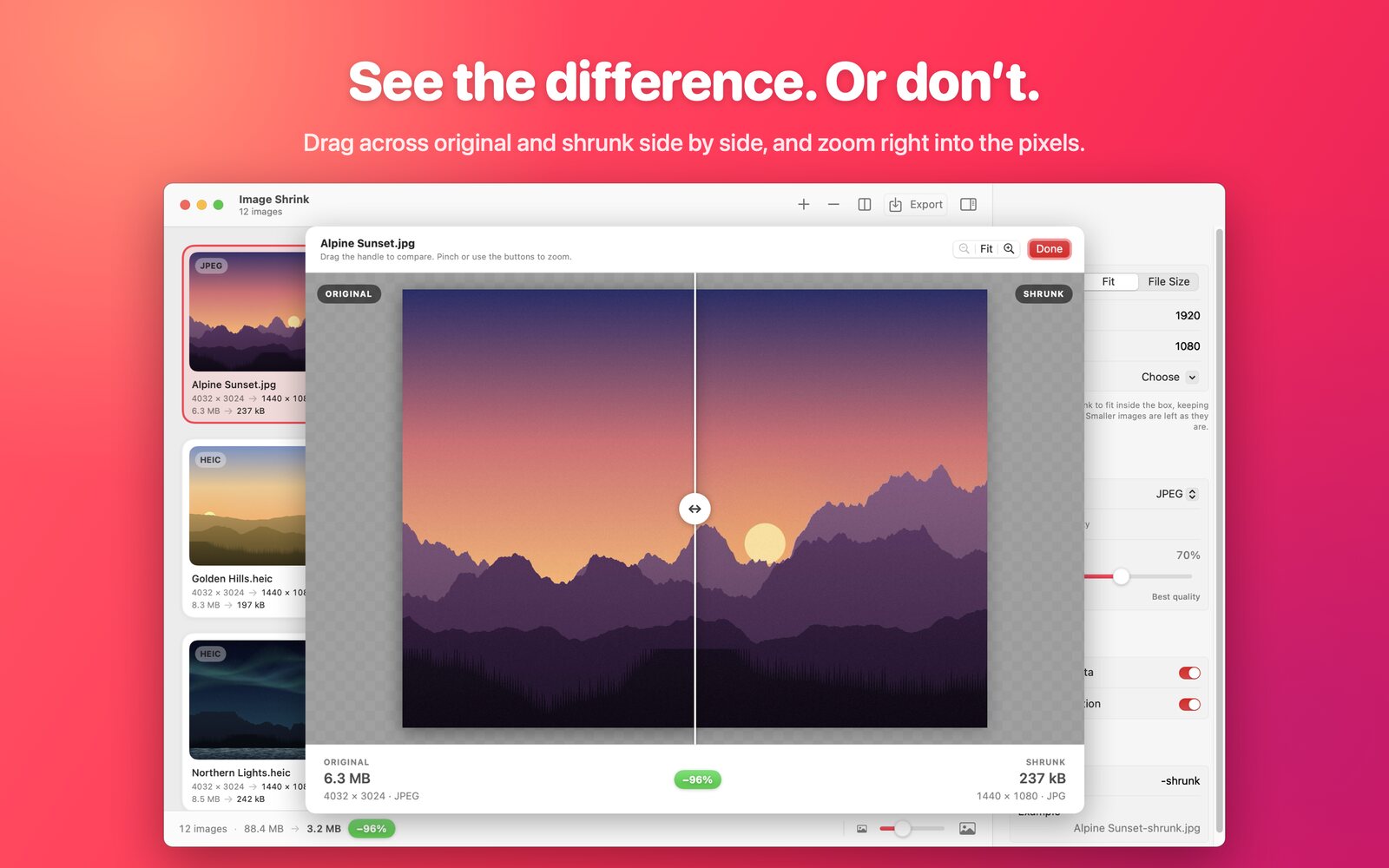
Compare before and after, down to the pixel.
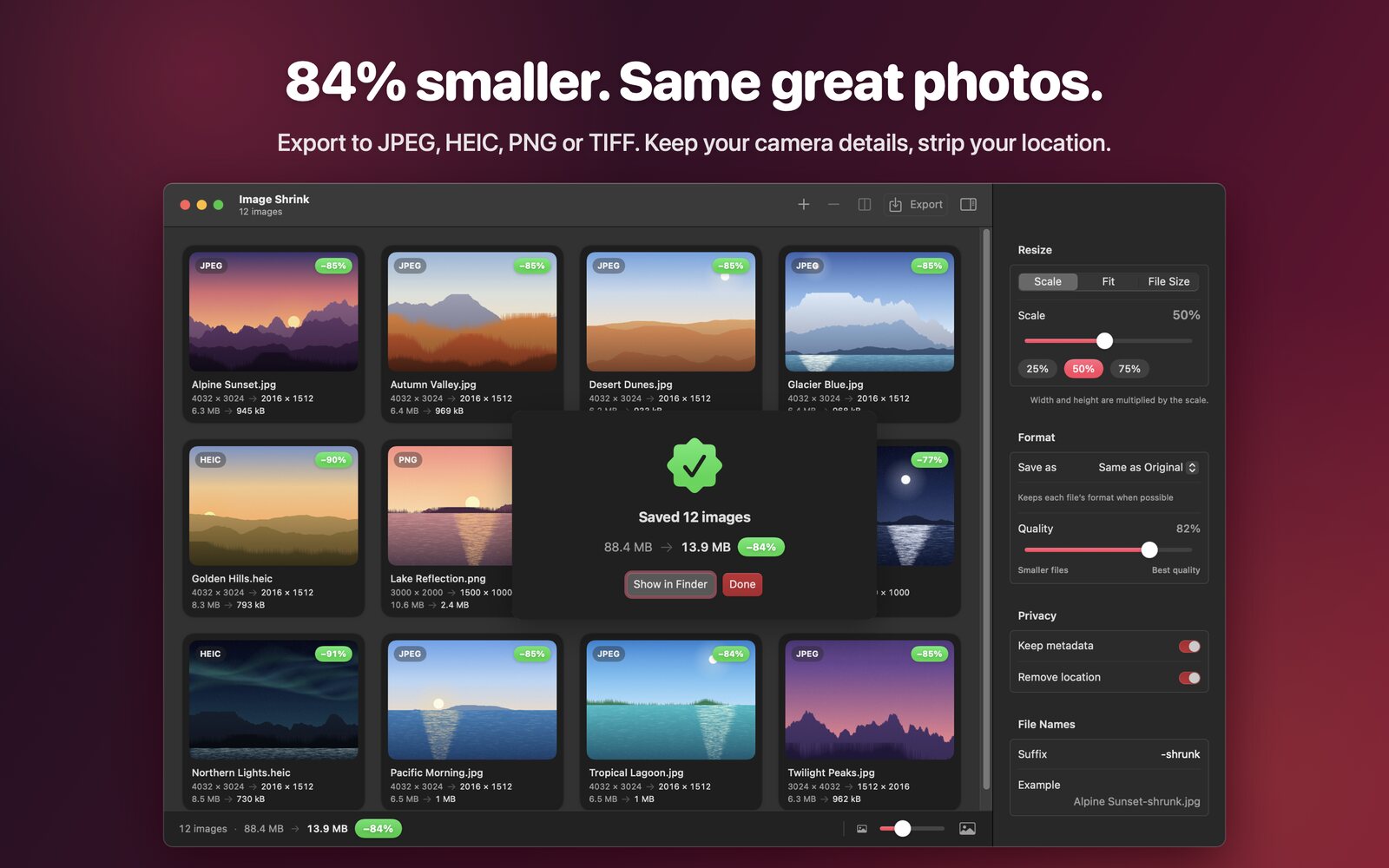
Export and see how much space you saved.
Image Shrink has no account, no subscription, no network connection and no analytics. It only reads the photos you give it and only writes to the folder you choose.
Requires macOS 14 or later.
Support
Questions, problems or ideas? Write to contact@snowlinesoftware.com or use the contact form.
How do I get every photo under a certain size?
Choose File Size in the settings panel, enter the limit (for example 500 KB) and choose "Each image". To fit a whole batch into one total, such as an email attachment limit, choose "All images combined" instead. Lowering the quality slider keeps more pixels for the same size.
Will my original photos be changed?
No. Image Shrink always writes new files, named with a suffix you choose (by default "-shrunk"), into the folder you pick when exporting. If a file with the same name already exists, a number is added instead of overwriting it.
Why is a PNG still large after shrinking?
PNG is lossless, so it stays much larger than JPEG or HEIC for photos. Choose JPEG or HEIC under Format to get far smaller files. Keep PNG for screenshots and images with transparency.
Does Image Shrink remove location data?
Yes. "Remove location" is on by default and strips GPS coordinates while keeping camera details. Turn off "Keep metadata" to remove all metadata.
Why can't Image Shrink save next to my original photos?
Mac App Store apps can only write where you allow them to. Choose the folder when exporting, which can be the same folder your photos are in.